
In today’s interconnected world, ports play a crucial role in facilitating communication between devices over a network. Think of ports as virtual doors on your computer or router that allow data to pass through for specific applications, such as web browsing, gaming, or file sharing. Each port is assigned a number (e.g., 80 for HTTP, 443 for HTTPS), and different applications or services use these ports to send and receive data.
However, not all ports are always open or accessible by default, and sometimes, certain ports need to be manually configured to work properly, especially in the case of port forwarding for services like remote access or online gaming. At the same time, open ports can also expose your system to security vulnerabilities, making it essential to check which ports are open and accessible.
In this context, knowing how and why to check your ports is vital for troubleshooting network issues, ensuring that services run smoothly, and maintaining the security of your system. Whether you are trying to set up a new server, solve connectivity problems, or protect your device from potential threats, checking your ports can help ensure that your network operates effectively and safely.
Understanding Ports and Their Functionality
When we talk about “ports” in networking, we’re referring to virtual endpoints that allow communication between devices over a network. In the context of computer networking, ports help route data to specific applications running on your system. Every service or application that communicates over a network uses a particular port to receive or send data. Here’s a breakdown of how ports function and their importance:
1.What is a Port?
A port is a logical number used to identify a specific process or service on a device in a network. Think of it like a door on your computer or network router. Different services, such as web servers or email servers, “open” specific ports to send and receive data.
Analogy: Imagine your computer as a building with several rooms. Each room (port) has a specific function, such as storing web data or sending emails. Data that enters the building must go through a specific room to reach the correct service.
2.Types of Ports
There are two primary categories of ports:
Physical Ports: These are actual hardware connections on your device, such as USB ports or Ethernet ports.
Network Ports: These are software-based ports that exist in the networking stack of your computer and are used for data transmission.
Network Ports can be further classified into:
Well-Known Ports (0 to 1023): These ports are reserved for standard services that most applications use. For example:
- Port 80: HTTP (used by web browsers)
- Port 443: HTTPS (secure version of HTTP)
- Port 21: FTP (File Transfer Protocol)
- Port 25: SMTP (Simple Mail Transfer Protocol, used for sending emails)
- Registered Ports (1024 to 49151): These are ports used by specific applications and services that are not part of the well-known set but are registered with the Internet Assigned Numbers Authority (IANA).
Dynamic or Private Ports (49152 to 65535): These ports are used for temporary, private connections between devices or applications. These are often assigned dynamically when an application needs to connect over the network.
3.TCP and UDP Ports
Ports are often associated with two main types of protocols: TCP (Transmission Control Protocol) and UDP (User Datagram Protocol). Both protocols are used for communication but work differently:
TCP Ports:
TCP is a connection-oriented protocol, meaning it ensures that data is delivered correctly and in order. It’s used for applications where reliability is important, such as web browsing (HTTP), email (SMTP), and file transfer (FTP).
Example: Port 80 (HTTP) and Port 443 (HTTPS) are typically TCP ports.
UDP Ports:
UDP is a connectionless protocol, meaning there’s no guarantee that data will arrive at its destination or arrive in the correct order. It’s faster but less reliable than TCP. UDP is often used for applications that prioritize speed over reliability, such as live streaming, online gaming, and VoIP (Voice over IP).
Example: Port 53 (DNS) and Port 161 (SNMP) are often used with UDP.
4.How Ports Facilitate Communication
When data is sent over a network, it’s sent in packets that are directed to a specific port on the receiving device. The receiving system uses the port number to determine which application or service should process the incoming data.
For example, when you visit a website, your browser connects to the server’s Port 80 (HTTP) or Port 443 (HTTPS). These ports are responsible for handling the web traffic and ensuring that the data (web page) is sent to the correct destination.
5.The Role of Ports in Network Security
Understanding how ports work is crucial for securing your network
Open Ports: Open ports are those that are accessible from outside the device or network. These are often used by legitimate services like web servers, but they can also become targets for hackers if not properly secured.
Closed or Filtered Ports: If a port is closed, it is not accepting any connections. Filtering happens when a firewall or other security software blocks access to specific ports.
Why Monitoring Ports is Important: Monitoring which ports are open or closed on your system can help you identify security risks. For example, leaving unnecessary ports open could allow unauthorized access, whereas closing unused ports reduces potential attack vectors.
Reasons to Check Your Ports
Checking your ports is essential for maintaining the health, security, and efficiency of your network. Below are several key reasons why you should regularly check your ports:
1.Port Forwarding and Network Configuration
Port forwarding is the process of configuring your router to allow external devices to access specific services (like web servers, gaming servers, or remote desktop) hosted on your local network. Checking your ports ensures:
Correct Port Forwarding: After setting up port forwarding, you need to verify that the correct ports are open and properly forwarded to the right internal devices. If the necessary ports are closed or incorrectly configured, services like web hosting or online gaming won’t be accessible to users outside your network.
Remote Access: Port forwarding is also crucial for accessing devices remotely (e.g., accessing a home security camera, or connecting to a remote desktop). Checking the relevant ports ensures that these connections are functioning smoothly.
2.Ensuring Security
Port security is critical for protecting your network from unauthorized access, malware, and cyber attacks. Open ports can serve as entry points for malicious actors if not properly secured. Here’s why checking your ports is a part of good cybersecurity practice:
Identifying Unnecessary Open Ports: Sometimes, unused ports remain open due to misconfigurations. These unnecessary open ports can increase the risk of attacks, such as hackers exploiting vulnerabilities in unpatched services running on those ports.
Preventing Unauthorized Access: Closed or filtered ports that are not meant for external connections can act as a barrier to malicious actors attempting to break into your network. Regular checks can help you spot vulnerabilities and reduce your exposure.
3.Troubleshooting Connectivity Issues
Sometimes, services or applications on your network may not work as expected due to blocked or closed ports. Port checking can help diagnose and resolve the following:
Unable to Access Services: If you’re trying to use services like gaming servers, VoIP calls, or remote access applications and they aren’t working, a port check will confirm if the necessary ports are open. If a port is closed, you may need to adjust your firewall or router settings to allow traffic through.
Connection Timeouts: If you encounter timeouts or failed connections when accessing certain websites or services, it could be due to blocked ports. Checking if the necessary ports are open can help diagnose the issue.
4.Verifying Firewall Settings
Firewalls are designed to protect your network by blocking unauthorized incoming and outgoing traffic. Sometimes, misconfigured firewall settings can block the ports necessary for specific applications to function correctly. Checking your ports helps in:
Firewall Misconfigurations: When a firewall is blocking essential ports, legitimate traffic won’t be able to reach the application or device it’s intended for. Running a port check allows you to verify that the firewall is properly set up to allow only safe, authorized connections while blocking malicious traffic.
Ensuring Proper Blocking of Unwanted Traffic: For example, if a malicious actor attempts to access your system through an unused port, your firewall should block the connection. Checking your ports ensures your firewall is properly protecting open ports.
5.Network Diagnostics
In addition to ensuring specific services or applications are functioning, checking your ports can also help in broader network diagnostics:
Identifying Blocked Ports: Some applications may require certain ports to be open to function correctly. A port checker can help identify if your ISP, firewall, or router is blocking these ports. For example, ISPs sometimes block ports related to P2P file sharing or gaming to reduce network congestion or prevent illegal activities.
Performance Issues: Blocked ports can affect network speed or cause interruptions, especially in activities like gaming or video streaming. Checking if critical ports are open helps you ensure that network performance is optimized.
6.ISP Restrictions
Some ISPs (Internet Service Providers) may block or restrict certain ports to prevent activities like peer-to-peer file sharing or gaming, or to reduce network congestion. Checking your ports can help you:
Detect ISP Port Blocking: If you find that essential ports are closed and you’ve verified your configuration is correct, your ISP may be blocking these ports. In this case, you may need to contact your ISP for clarification or switch to a different port or protocol.
Understand Network Restrictions: Knowing which ports are blocked by your ISP helps you troubleshoot issues related to accessing certain services, ensuring that you can find alternatives if necessary.
How to Check Ports
Checking ports involves testing whether a specific port on your network is open, closed, or filtered. There are several ways to check your ports, and online port checkers are the most accessible and easiest method for many users. Here’s a detailed breakdown of how to check ports:
1.Use an Online Port Checker
Online port checkers are tools that allow you to test if a specific port on your public IP address is open. These tools are especially useful if you’re configuring network services, such as a web server, gaming server, or remote access.
Steps to Check Ports Using an Online Port Checker:
Identify Your Public IP Address
Online port checkers often auto-detect your public IP, but if not, you can find your public IP by searching “What is my IP address?” in a search engine.
Choose a Reliable Online Port Checker
Here are a few commonly used port checkers:
YouGetSignal Open Port Check Tool (yougetsignal.com)
CanYouSeeMe (canyouseeme.org)
PortChecker.co (portchecker.co)
Enter the Port Number
Once you’ve chosen a port checker, enter the port number you want to check (e.g., 80 for HTTP, 443 for HTTPS, 21 for FTP).
Some port checkers allow you to check a range of ports if you’re troubleshooting multiple services at once.
Start the Test
Click the “Check” or “Test” button to initiate the port check.
The tool will attempt to connect to the specified port on your public IP address.
Review the Results
Open Port: If the port is open, the tool will confirm that it is accessible from the internet.
Closed Port: If the port is closed, it means no service is actively listening on that port or it is blocked by a firewall.
Filtered Port: If the port is filtered, it means a firewall or other security system is blocking the connection, and the tool cannot verify whether it’s open or closed.
2.Check Ports Using Command Line Tools
For more advanced users or for troubleshooting purposes, you can also check ports using command-line tools. These methods require some familiarity with the command line but offer more control and flexibility.
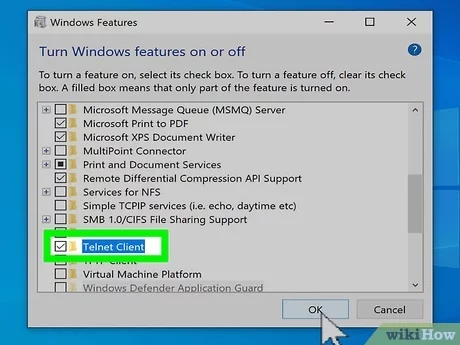
Windows Command Prompt (telnet)
Open Command Prompt
Press Windows + R, type cmd, and press Enter.
Use the telnet Command
Type the following command in the Command Prompt:
- php
- Copy code
- telnet
- Replace with the IP address of the server or device you want to check.
- Replace with the port you wish to test (e.g., telnet 192.168.1.1 80 for checking port 80).
- Interpret the Results
- If the screen goes blank or you see a cursor, the port is open and listening.
- If you receive a connection error, the port is either closed or blocked.
- Linux / macOS (netstat or nc)
- Open Terminal
- On Linux or macOS, open the terminal application.
- Use netstat Command (for open ports)
- Type:
- javascript
- Copy code
- netstat -an | grep
- This will display a list of open ports on your machine.
- Use nc (Netcat) Command (for remote port check)
- Type:
- php
- Copy code
- nc -zv
- For example: nc -zv 192.168.1.1 80 to check if port 80 is open.
3.Check Ports Using Router Configuration
If you are testing ports that are set up through port forwarding on your router, you may want to check the router’s configuration.
Steps:
Log Into the Router’s Admin Interface
Access your router’s settings by typing its IP address (usually something like 192.168.0.1 or 192.168.1.1) into a web browser.
Enter your router’s admin username and password.
Locate Port Forwarding Settings
Look for the section related to Port Forwarding or Virtual Server in the router’s settings.
You can see which ports are forwarded and to which internal IP addresses.
Verify Open Ports
Ensure the correct ports are being forwarded to the correct device on your network.
4.Using Advanced Network Tools
For more comprehensive port checking, especially for entire ranges of ports, you can use network scanning tools like Nmap or Wireshark.
Using Nmap:
Nmap is a powerful network scanning tool that can check multiple ports across an IP address or network.
- Install Nmap
- Install Nmap on your computer (available for Windows, Linux, and macOS).
- Run a Basic Scan
- Open the terminal or command prompt and type the following:
- css
- Copy code
- nmap
- This command will scan common ports on the specified IP address.
- Scan Specific Port Range
- You can specify a range of ports to scan by typing:
- php
- Copy code
- nmap -p –
- For example: nmap -p 80-100 192.168.1.1
Risks of Open Ports
An open port is one that is actively listening for incoming connections and is available to communicate with other devices or services. While open ports are essential for certain applications and services to function (like web servers, email, or gaming), they can also present significant risks if not properly managed. Here are the main risks associated with open ports:
1.Potential Vulnerabilities and Exploits
Exposed Services: Open ports allow external devices to access specific services running on your network or computer. If these services have vulnerabilities, cybercriminals can exploit them to gain unauthorized access.
Outdated Software: Many open ports are associated with specific software or services (e.g., FTP, SSH, HTTP). If these services are outdated or unpatched, they could have security flaws that hackers can exploit to breach the network.
Example: An outdated version of an FTP server might allow an attacker to access sensitive files through known vulnerabilities.
2.Remote Access for Hackers
Unauthorized Access: When certain ports are open, hackers can potentially connect remotely to your system. For example, if the SSH port (22) is open, an attacker could try brute-forcing credentials to gain remote access to your system.
Backdoors: Open ports can be used as backdoors for malware or ransomware to infiltrate and control your system. This is especially true if ports are left open by default without proper security measures.
3.Increased Attack Surface
Expanding Points of Entry: Every open port increases the number of potential entry points into your system. This expands the attack surface, making it easier for attackers to find a weakness and exploit it.
Denial of Service (DoS) and Distributed Denial of Service (DDoS) Attacks: Attackers may target open ports with DDoS attacks, flooding the port with excessive traffic, causing your system to crash or slow down.
4.Exposure to Network Intrusions
Data Interception: Open ports can potentially expose sensitive data if they are not encrypted properly. For example, an open port on a web server without SSL/TLS encryption could allow attackers to intercept login credentials or personal information in transit.
Eavesdropping: If ports are open and services aren’t secured, attackers can listen in on communications between devices. For example, if a port used for communication between internal systems is open, attackers could intercept and manipulate data.
5.Exploitation of Misconfigured Network Devices
Misconfigured Firewalls or Routers: If routers or firewalls are not correctly configured, they may leave ports open unintentionally. Attackers can exploit these misconfigurations to access the network.
Default Settings: Many routers and devices come with default configurations that leave certain ports open. Hackers can easily target these default ports if they are not changed or closed.
6.Botnet Recruitment
Infected Devices: Open ports can allow malware to infect your devices and turn them into part of a botnet. Once infected, your device may be used to carry out malicious activities, such as launching DDoS attacks or sending spam emails without your knowledge.
7.Security Risks from Unnecessary Open Ports
Unnecessary Services: Sometimes ports are left open for services that are no longer needed. These open ports serve as unnecessary security risks and should be closed if they are no longer in use. For example, an FTP port might remain open even though the service is no longer needed.
Lack of Proper Monitoring: Without regular monitoring and auditing of open ports, organizations and individuals may not realize that certain ports are open and vulnerable to attack. This lack of oversight can leave systems exposed for long periods.
Best Practices for Securing Open Ports
To mitigate these risks, it’s essential to secure open ports by following these practices:
Close Unnecessary Ports: Only keep the ports open that are required for the functioning of your services or applications.
Use Firewalls: Configure firewalls to block unwanted incoming traffic and only allow access to specific IP addresses or devices.
Regularly Update Software: Ensure that the software associated with open ports is always up to date and patched to address known vulnerabilities.
Use Strong Authentication: For services like SSH or RDP, implement strong authentication mechanisms, such as multi-factor authentication, to prevent unauthorized access.
Monitor Open Ports Regularly: Use tools to scan your network and ensure that open ports are actively being monitored for potential threats.
Implement Network Segmentation: Isolate critical services behind a firewall or in a separate network to limit the impact of potential intrusions.
When Should I Check My Ports?
Checking your ports at the right times is crucial for maintaining the functionality and security of your network. Here are key instances when you should consider checking your ports:
1.Before Setting Up New Services
When you’re setting up new network services or applications that require port forwarding (e.g., a web server, game server, FTP server, or remote access), it’s essential to verify that the required ports are open and accessible.
Why?
Services like gaming, remote desktop access, and web hosting often require specific ports to be open for communication. If the necessary ports are closed, these services won’t work, and you’ll run into issues connecting to the service.
Action:
Before configuring port forwarding on your router, use a port checker to verify the ports you need to forward are open and available.
2.When Experiencing Network Connectivity Issues
If you’re facing problems with a particular application or service (e.g., unable to access a website, host a game, or use a voice-over-IP service), the issue could be related to blocked or closed ports.
Why?
Firewalls, network misconfigurations, or even ISP restrictions could be preventing certain ports from being accessible, which affects the service’s functionality.
Action:
Run a port check to verify whether the required ports for that service are open. If not, troubleshoot your router, firewall settings, or contact your ISP.
3.After Modifying Your Network or Firewall Settings
Whenever you make changes to your router’s settings, firewall configuration, or security software (e.g., changing port forwarding rules, enabling/disabling a firewall), it’s important to check whether the changes have affected your open ports.
Why?
Sometimes, these changes unintentionally block or close previously open ports, which could disrupt services or cause new issues.
Action:
After any change in network configuration or firewall settings, use a port checker to confirm that the ports essential for your services or applications are still open and properly forwarded.
4.When Updating or Installing New Software or Hardware
Installing new software (like a server application or a security tool) or changing hardware components (such as adding a new router or network switch) may impact your network setup and its open ports.
Why?
New software might require certain ports to be open, while new hardware might require reconfiguration of existing network settings.
Action:
After installing new software or hardware, verify the open ports to ensure that the software works correctly and that the network setup remains intact.
5.Periodically for Security Monitoring
Regularly checking your open ports is a best practice for ensuring the ongoing security of your network. Over time, new vulnerabilities may emerge, or unauthorized services may open ports without your knowledge.
Why?
If ports are left open without proper monitoring, they can become targets for hackers or malware. Regular port checks help ensure that only necessary ports are open and that no unnecessary or risky ports are exposed.
Action:
Set a schedule to periodically check your open ports to identify any potential vulnerabilities, particularly for services that are not in active use. Close any ports that are no longer needed or are unnecessary.
6.If You Suspect Your Network Has Been Compromised
If you notice unusual network activity (e.g., slower speeds, unexpected access to sensitive information, or unfamiliar connections), there may be a security breach or malware running on your network.
Why?
Hackers often exploit open ports to gain unauthorized access to systems. If your network has been compromised, unauthorized ports could be opened without your knowledge.
Action:
Run a port scan to check for any unusual open ports, and use other security tools to identify and remove potential threats.
7.When Changing Your ISP or Network Environment
Switching to a new Internet Service Provider (ISP) or modifying your network setup (e.g., changing routers or switching from IPv4 to IPv6) can affect your port forwarding or open ports.
Why?
Some ISPs block or restrict certain ports to prevent abuse (such as email spam), and new network configurations may require you to adjust port settings.
Action:
After switching ISPs or changing your network setup, check whether any new restrictions have been placed on your ports, and ensure your configurations are correct.
Conclusion
regularly checking your ports is essential for maintaining both the security and functionality of your network. Ports act as gateways for communication between devices and applications, and ensuring they are configured correctly helps ensure that services like gaming, remote access, and web hosting work as expected. Furthermore, keeping an eye on open ports is critical for security; improperly secured or unnecessary open ports can be exploited by hackers, leaving your network vulnerable to attacks. By checking your ports, you can identify and close any unnecessary openings, reducing the risk of unauthorized access. Additionally, port checks are valuable for troubleshooting network issues, as blocked or closed ports can often be the cause of connectivity problems. Whether you’re setting up new services, making changes to your network, or adapting to software updates, checking your ports helps ensure everything runs smoothly. Ultimately, regular port checks help safeguard your network, prevent unwanted access, and ensure that your services continue to operate as intended.