
In the world of networking, ports are like virtual doorways that allow data to travel between devices and applications. Each port serves a specific purpose, enabling communication for various services like web browsing, email, file sharing, and gaming. For instance, web servers typically use port 80 for HTTP or port 443 for HTTPS.
When a port you need is closed, it can disrupt these communications, preventing you from accessing a critical service or hosting an application. This can happen in various scenarios, such as when setting up a game server, enabling remote desktop access, or configuring a database.
Understanding why a port is closed and how to address it is essential for maintaining a functional and secure network. This guide will walk you through identifying the problem, understanding the causes, and resolving the issue step by step.
Identify the Problem
Before resolving a closed port issue, you need to accurately identify the root cause. Here’s how to diagnose the problem:
1.Check the Port Status
To determine if a port is closed, use tools to test its availability:
Online Port Scanners: Websites like canyouseeme.org or similar services allow you to check if a specific port is open to external connections.
Command-Line Tools: Use utilities like:
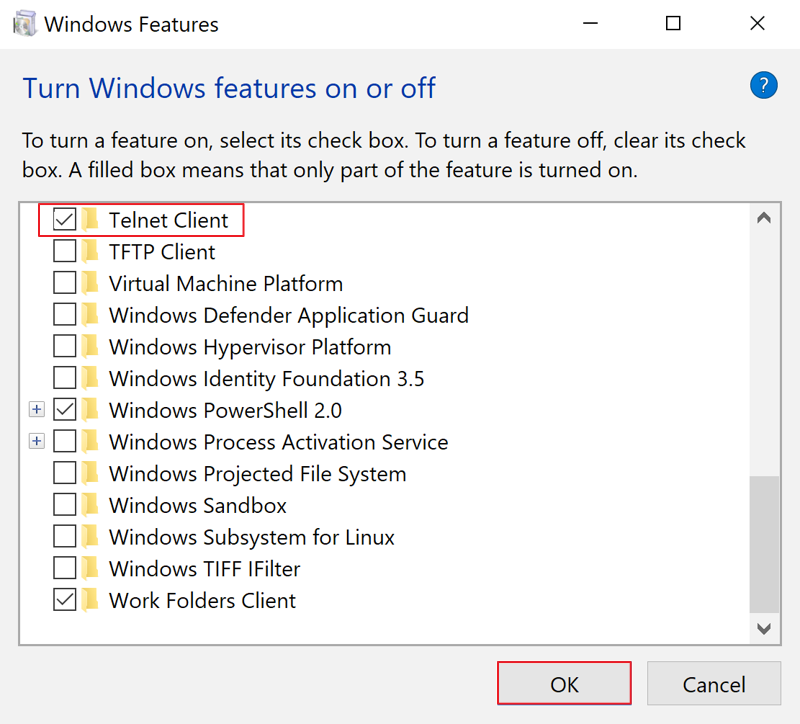
telnet [IP address] [port] (e.g., telnet 192.168.1.1 80)
nc -zv [IP address] [port] (Netcat, for Unix-like systems)
nmap for comprehensive port scanning.
System-Specific Tools:
Windows: Use netstat -ano in Command Prompt or PowerShell to view active ports.
macOS/Linux: Use ss or netstat to list open ports.
2.Understand the Context
Analyze where the port closure is occurring:
Local Device:
The port might be blocked by the operating system’s firewall or security settings.
Applications or services using the port might not be running.
Router or Network Device:
The router may not have port forwarding configured for the service.
Network Address Translation (NAT) might prevent external access.
Internet Service Provider (ISP):
ISPs often block specific ports (e.g., SMTP port 25) for security or policy reasons.
3.Test Multiple Scenarios
On Your Network:
Check if the port is accessible from another device within the same local network. If it is, the issue is likely at the router or ISP level.
From Outside Your Network:
Use external testing tools to simulate access from outside your local network. If external access fails, the router, firewall, or ISP is likely involved.
4.Gather Information
Note Any Error Messages: Error messages can give clues about where the problem lies (e.g., “Connection refused” suggests the port isn’t open or isn’t accepting connections).
Document Your Configuration: Keep track of settings like port numbers, protocols (TCP/UDP), and IP addresses to avoid confusion during troubleshooting.
Common Causes of Closed Ports
A closed port can result from several factors, each related to different layers of your network setup or policies. Here’s a detailed explanation of the most common causes:
1.Firewall Restrictions
Firewalls are designed to protect devices and networks by controlling incoming and outgoing traffic. They may close or block certain ports by default to prevent unauthorized access.
Operating System Firewalls:
Windows Defender Firewall, macOS Firewall, or Linux iptables may block ports not explicitly allowed.
Applications requesting port access must be granted permissions.
Third-Party Security Software:
Antivirus programs or other security suites might block specific ports due to predefined security rules or false positives.
Solution: Check the firewall settings on your device and add a rule to allow traffic through the required port.
2.Router Configuration
Routers often serve as the first line of defense for your home or office network. If a port is closed on the router, external devices cannot access services running on your local network.
Port Forwarding Not Configured:
For external access to local services, you must configure port forwarding in your router’s settings.
Example: Forwarding port 80 to access a local web server.
Blocked by Default:
Some routers block certain ports by default for security reasons.
Solution: Access your router’s admin panel and configure port forwarding or unblock the specific port.
3.ISP Restrictions
Internet Service Providers (ISPs) sometimes block certain ports to enforce policies, prevent misuse, or enhance network security.
Commonly Blocked Ports:
Port 25: To prevent spam emails.
Port 80: To restrict hosting web servers on residential connections.
Ports commonly associated with peer-to-peer sharing or gaming.
Dynamic IP Issues:
If your ISP uses dynamic IPs, port accessibility might vary over time.
Solution: Contact your ISP to confirm if they are blocking the port and inquire about potential solutions, such as upgrading to a business plan or using a VPN.
4.Service Not Running
A port is typically associated with a specific application or service. If the service isn’t running, the port will appear closed.
Example Scenarios:
A web server like Apache or Nginx is not started.
A game server application is misconfigured or inactive.
Solution: Verify that the application or service linked to the port is installed, configured, and actively running.
5.Network Address Translation (NAT) Issues
Network Address Translation (NAT) can prevent external traffic from reaching a specific device on your network.
Double NAT:
Occurs when multiple routers are involved, causing conflicts.
Solution: Configure the NAT settings properly or enable UPnP (Universal Plug and Play) for automatic handling of port forwarding in simpler cases.
6.Misconfigured VPNs or Proxies
Using a VPN or proxy can inadvertently close ports or reroute traffic in unexpected ways.
Blocked by VPN Provider:
Some VPN services block specific ports for security or policy reasons.
Solution: Check your VPN or proxy configuration and adjust settings to allow the required port.
7.Conflicting Rules or Port Usage
If multiple applications or services attempt to use the same port, conflicts can arise, causing the port to remain closed.
Solution: Use tools like netstat or lsof to identify which process is using the port and resolve conflicts by reassigning ports.
Steps to Resolve the Issue
1.On Your Device
Allow the Port Through the Firewall:
Windows:
Open the Windows Firewall settings.
Go to “Advanced Settings” > “Inbound Rules.”
Create a new rule to allow traffic on the specific port.
macOS:
Navigate to “System Preferences” > “Security & Privacy” > “Firewall.”
Use the “Firewall Options” button to allow specific apps or services.
Linux:
Use command-line tools like iptables or ufw to open the port (e.g., sudo ufw allow 8080/tcp).
Check Security Software:
Ensure third-party antivirus or security software isn’t blocking the port.
2.On Your Router
Access the Router Settings:
Open a web browser and enter the router’s IP address (usually something like 192.168.1.1).
Log in using your username and password.
Set Up Port Forwarding:
Find the “Port Forwarding” or “Virtual Server” section in the router settings.
Enter the following details:
Service/Name: A label for the rule (e.g., “Web Server”).
Port Range: The specific port number (e.g., 80) or a range.
Protocol: Choose between TCP, UDP, or both.
Internal IP Address: The IP address of the device hosting the service.
Save the changes and restart your router if needed.
3.Check the Service
Verify the Application or Service:
Make sure the application using the port is running. For example:
A web server (e.g., Apache, Nginx) must be started.
A gaming server must be configured to listen on the correct port.
Configuration Files:
Check any configuration files or settings related to the service to confirm the port is correctly defined.
4.Consult Your ISP
Determine if the Port is ISP-Blocked:
Some ISPs block specific ports for security reasons (e.g., SMTP port 25 or HTTP port 80).
Contact Support:
Request information or assistance to unblock the port or explore alternatives.
5.Alternative Workarounds
Use a VPN:If the ISP blocks a port and won’t unblock it, a VPN can help bypass restrictions.
Change the Port:Configure the service to use an alternative port not blocked by your ISP.
Testing and Verification
Once you’ve taken steps to open the closed port, it’s essential to verify that the changes were successful. Here’s how you can test and troubleshoot effectively:
1.Tools for Testing
Online Port Scanners:Use websites like YouGetSignal or other online tools to check if a specific port is open on your public IP address.
Enter your public IP and the port number to test.
Ensure the application or service using the port is active when running the test.
Command-Line Tools:
Telnet:
Use the Telnet command to check connectivity.
Example:
- bash
- Copy code
- telnet
- If it connects successfully, the port is open; otherwise, it’s still closed.
Netcat (nc):
A more advanced utility available on Linux and macOS.
Example:
bash
Copy code
nc -zv
PowerShell (Windows):
Use the Test-NetConnection command.
Example:
powershell
Copy code
Test-NetConnection -ComputerName -Port
2.What to Look For
Open Port:
If the test indicates that the port is open, your configuration changes were successful.
Closed or Timed-Out Port:
This indicates that the port is still blocked or unreachable.
3.Troubleshooting If the Port is Still Closed
Double-Check Configurations:
Verify that the firewall rules allow traffic on the specific port.
Revisit router settings to confirm port forwarding is correctly set up.
Ensure the Service is Running:
Some tools may report a port as closed if the service isn’t actively listening on that port. Test whether the application or service bound to the port is running.
Test from Different Networks:
Attempt the test from a different external network to rule out issues with local restrictions.
4.Verify with the Application
After confirming the port is open, test the actual application or service associated with the port. For example:
For a web server on port 80, try accessing it in a browser.
For a game server, try connecting from a client device.
5.Document and Monitor
Once confirmed, document the changes made (e.g., firewall rules, router configurations) for future reference.
Monitor the service to ensure it remains accessible, especially after updates or network changes.
Preventing Future Issues with Closed Ports
Proactively managing your network and device settings can help avoid encountering closed port issues in the future. Here’s how:
1.Regularly Check Firewall and Router Settings
Firewall Settings:Periodically review your system’s firewall rules to ensure legitimate ports are allowed.
Use organized naming conventions for rules to make them easier to identify.
Router Configuration:Log in to your router’s admin panel and confirm port-forwarding rules are correct and still required.
Remove outdated or unnecessary port-forwarding rules to avoid clutter and potential conflicts.
2.Keep Software and Firmware Updated
Operating System Updates:
Ensure your operating system is up to date, as updates often include security patches that address vulnerabilities.
Router Firmware:
Update your router’s firmware to the latest version, as this improves performance and resolves bugs.
Application Updates:
Keep applications that rely on open ports updated to prevent compatibility or security issues.
3.Monitor Network Traffic
Use network monitoring tools to identify suspicious activity or unauthorized attempts to access certain ports.
Monitoring helps detect anomalies early, reducing the likelihood of accidental port closures or misuse.
4.Use Dynamic or High-Range Ports for Custom Applications
If you’re setting up custom services, consider using dynamic or higher-numbered ports (above 1024) that are less likely to be blocked or used by other applications.
Ensure you document the ports used to streamline troubleshooting.
5.Implement Robust Security Measures
Strong Passwords:Secure your router and other devices with strong, unique passwords to prevent unauthorized access.
VPN Usage:Use a VPN to bypass ISP restrictions on specific ports and enhance security for your traffic.
Port Knocking:Implement port-knocking techniques to obscure open ports from unauthorized access.
6.Regular Backups and Documentation
Maintain backups of your router and firewall configurations.
Keep a written record of custom configurations, such as which ports are forwarded and why, to quickly resolve future issues.
7.Engage Your ISP
Check your ISP’s policies regarding blocked ports, especially for services like web hosting or gaming.
Consider upgrading to a plan that supports unrestricted access if you encounter recurring port-related problems.
Conclusion
Dealing with a closed port can be a straightforward process if approached systematically. By identifying the root cause—whether it’s a firewall rule, router configuration, or an ISP restriction—you can take targeted steps to resolve the issue. It’s crucial to test your setup at each stage to ensure the port is successfully opened and functioning as intended.
Managing ports effectively is not just about fixing immediate problems but also about preventing future issues. Regularly review your firewall and router settings, keep your software and hardware up to date, and stay informed about your ISP’s policies. These proactive measures can help ensure uninterrupted access to the services and applications you rely on.
If challenges persist, don’t hesitate to consult official documentation, seek community support, or contact your ISP for assistance. By taking these steps, you can maintain a secure and efficient network environment, avoiding downtime and maximizing productivity.