
Most Piso WiFi problems aren’t hardware failures — they’re network misconfigurations. A machine that shows “connected, no internet,” drops sessions randomly, or won’t let you into the admin panel is almost always a router, port, or IP issue rather than a broken coin acceptor. If you run one or more vendo units, knowing how to check the network side yourself saves you the cost and delay of calling a technician for something you can fix in minutes.
How a Piso WiFi Machine Sits on Your Network
A Piso WiFi vendo isn’t a standalone internet source. It’s a small computer and coin acceptor wired to a router that’s connected to a regular fiber or DSL line. The vendo board runs its own local network — usually on the 10.0.0.0 range, with the admin panel reachable at 10.0.0.1 — and hands out limited internet access to paying users through that router.
Because everything routes through one connection shared across dozens of users, the two most common failure points are the router itself and the way the vendo board talks to it. When you understand which device is responsible for what, you stop guessing and start checking the right thing first.
Checking Whether the Problem Is Your Internet or Your Machine
Before touching the vendo settings, confirm the underlying connection actually works. Plug a phone or laptop directly into the same router the machine uses, bypassing the vendo board, and load any website. If that fails, the problem is your ISP or router, not the Piso WiFi unit — and no amount of adjusting the machine will fix it until the base connection is restored.
If the direct connection works but users still can’t get online through the machine, the fault is in the vendo board’s configuration or the way it’s bridged to the router. That’s where port and IP checks come in.
Ports, Remote Admin Access, and Why They Matter
Many operators want to manage their machines without physically standing in front of each one. That usually means enabling remote access to the admin panel, which depends on port forwarding being set up correctly on the router. If you’ve forwarded a port and still can’t reach the panel from outside your local network, the issue is almost always one of three things: the port isn’t actually open, your ISP is using CGNAT (which blocks inbound connections on most consumer plans), or the router’s firewall is dropping the request.
Testing whether a port is genuinely open from the outside — rather than assuming it is because you configured it — is the fastest way to narrow this down. An open-port check tells you in seconds whether traffic is reaching your router on the port you forwarded, which separates a router misconfiguration from an ISP-level block you can’t fix without a static IP or a business plan.
The Pause Time Setting and How It Affects Sessions
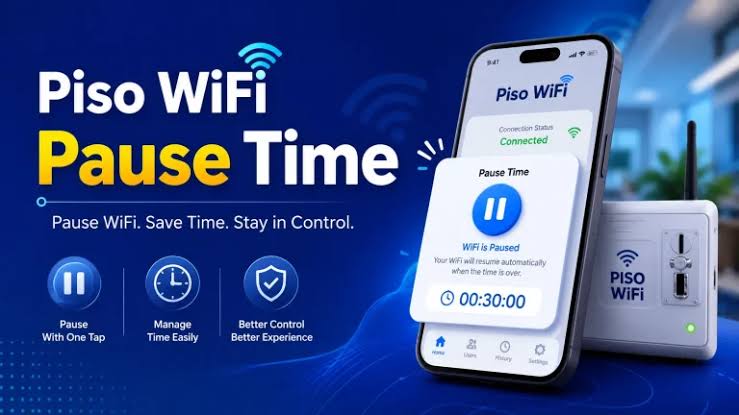
Beyond raw connectivity, one setting shapes how fair the machine feels to users: how it handles time when someone disconnects mid-session. By default, many vendo boards keep the countdown running whether or not the user is actively connected, which drains paid minutes while a phone is locked or out of range. The pause time feature changes that, holding a user’s remaining balance during a disconnect and resuming it when they reconnect within a set window.
Whether this is worth enabling depends on where your machine sits and how your users behave, and the configuration isn’t always obvious from the admin panel alone. If you’re deciding how to set it or troubleshooting why a session didn’t resume the way a user expected, the Piso wifi pause time documentation lays out how the setting is calculated and how long a paused session stays valid before it closes out for good. Getting this right reduces user complaints, which on a busy machine directly affects repeat coin insertions.
Common Network Issues and Quick Fixes
“Connected, no internet.” The router lost its connection to the ISP, or the vendo board’s DNS settings are wrong. Restart the router first; if that fails, check the base connection directly.
Can’t reach 10.0.0.1. Your device may have grabbed an IP outside the machine’s range. Forget the network on your phone, reconnect, and confirm you’re on the 10.0.0.x subnet before trying the admin address again.
Sessions drop every few minutes. Often overheating on outdoor units, or a weak signal between the vendo and the router. Move the router closer or improve ventilation around the enclosure.
Remote admin panel unreachable. Test whether your forwarded port is actually open from outside. If it’s closed despite correct forwarding, suspect CGNAT on your ISP plan.
FAQs
Why does my Piso WiFi machine say connected but has no internet? The shared connection behind the machine is down, or the vendo board’s DNS is misconfigured — test the router directly to find out which.
How do I access my Piso WiFi admin panel remotely? You need port forwarding set up on your router and a public IP that accepts inbound connections; CGNAT-based ISP plans usually block this without a static IP.
How do I know if my forwarded port is actually open? Use an open-port checker from outside your local network — it confirms whether traffic reaches your router on that port, rather than relying on the router’s settings page alone.
What is the pause time setting on a Piso WiFi machine? It holds a user’s remaining paid minutes during a disconnect and resumes them on reconnection, instead of draining time while they’re offline.
Can network problems cause users to lose their paid time? Yes — if sessions drop and pause time isn’t enabled, users can lose minutes they paid for, which is a common source of complaints.
Final Thoughts
The network side of a Piso WiFi machine is where most day-to-day problems live, and it’s also the part operators most often hand off to a technician unnecessarily. Learn to isolate whether the fault is your ISP, your router, a port, or a vendo setting, and the majority of issues become a five-minute check rather than a service call. Start with the base connection, work outward to ports and access, and treat settings like pause time as tuning once the connectivity itself is solid.